CAMremote-2/2A/3/3A User Manual (Web version)
Revision History
| 02-July-2018 | Added configuration example for Parrot Sequoia and FLIR IR camera/GPS connections |
| 13-Oct-2017 | Added description how to enable overlay info to video signal (HDMI/Composite) of Sony's Camcorders |
| 06-Oct-2017 | Control mode 'Manual: Wired (CH0=Resistors+Switches)' schematics update |
| 01-Jul-2016 | Added description of limitations and issues of Sony's USB/MULTI interface |
| 14-Dec-2015 | Added connection example for 433 MHz radio and Arducopter/Pixhawk/MikroKopter |
| 13-Dec-2015 | Added 12-button radio description |
| 08-Dec-2015 | Added Wifi connection examples |
| 09-Nov-2015 | Added connection example of Parachute Rescue Kit |
| 18-Oct-2015 | Added connection example for Arducopter/Pixhawk |
| 11-Oct-2015 | Added Autopilot and Manual control for Arducopter/Pixhawk |
| 23-Sep-2015 | Added configuration example to Control Mode: S.BUS |
| 11-Aug-2015 | Added step-by-step instructions how to configure the CR |
| 01-Aug-2015 | Added Control Mode: S.BUS |
| 05-Jul-2015 | Added mode descriptions for Arducopter/Pixhawk and Mikrokopter |
| 30-Apr-2015 | Added new example about using Sony's MULTI+USB connection |
| 13-Feb-2015 | Update of Troubleshooter guide |
| 30-Jan-2015 | Configuration example about Wireless PIR Motion Sensor |
| 13-Jan-2015 | Updated info about Sony's MULTI/LANC cables and features |
| 07-Nov-2014 | More configuration examples added |
| 30-Oct-2014 | Scripting instructions for GoPro Hero 3/3+ |
| 20-Oct-2014 | Control mode 'PWM Signals Tester: CH0-CH2' description and Troubleshooter guide update. Connection diagrams added to Configuration examples |
| 28-Sep-2014 | Control mode 'Manual: Wired (CH0=Resistors+Switches)' description update |
| 23-Aug-2014 | Control mode 'RC receiver (CH0=Record/AF/Shoot, CH1=MF, CH2=Av/AutoAv)' description update |
| 09-Jul-2014 | More configuration examples added |
| 03-Jul-2014 | Added descriptions of new Control Modes. Examples of different configurations (BlackMagic cameras, Sony Multiterminal, GoPro). More detailed info about firmware update is added to Troubleshooter guide. |
| 09-Dec-2013 | Web Release |
Applies to:
Configuration Software Ver. 2.6.* and up
Contents
- CAMremote-2/2A/3 User Manual (Web version)
- CAMremote-2/2A Boards
- Configuration Software
- Camera Settings
- Extra Settings (USB/PTP only)
- Device
Settings
- Control Mode
- Manual: RC receiver (CH0=Shoot, CH1=Zoom, CH2=Alt)
- Manual: RC receiver (CH0=Execute, CH1=Function)
- Manual: RC receiver (CH0=Record/AF/Shoot)
- Manual: RC receiver (CH0=Record/AF/Shoot, CH1=Record)
- RC receiver (CH0=Record/AF/Shoot, CH1=SmoothZoom, CH2=Alt)
- RC receiver (CH0=Record/AF/Shoot, CH1=Av, CH2=Tv, CH3=ISO)
- RC receiver (CH0=Record/AF/Shoot, CH1=MF, CH2=Av/AutoAv)
- S.BUS on CH0: (F1=Record/AF/Shoot, F2=Zoom, F3=Av, F4=Tv, F5=ISO)
- Arducopter: (CH0/2=Record/Shoot, CH1=Zoom/Record/CamOn+Off)
- Mikrokopter: (CH0=Record/Shoot, CH1=Zoom)
- Manual: Rising edge sense (CH0=Shoot, CH1=Zoom+, CH2=Zoom-)
- Manual: By DuneCam (shutter/zoom/settings via CH0)
- Manual: RC4 at CH0 (A=ZoomOut, B=ZoomIn, C=Shoot, D=Pause)
- Camera Control #1: 8/12B-Radio+FC+RC (CH0=RX, CH1/CH2=Rec/Shoot)
- Manual: 4/8/12 Button Radio (CH0=Radio, CH1=Tilt, CH2=Pan, CH3=Z/R)
- Parachute Kit: (CH0=433MHz Radio, CH1=RX, CH2=Servo)
- Manual: Switch (CH0=Shoot, CH1=Focus+, CH2=Focus-, CH3=Record)
- Auto: Intervalometer
- Auto: HoVer ('V'-pattern motion, CH0=Pan, CH1=Tilt)
- Auto/Manual: HoVer ('V'-pattern motion, CH0=4/8b-Radio, CH1=Tilt, CH2=Pan)
- Auto: Panorama (CH0=Pan)
- Auto/RC: HoVer 'S'-pattern motion (CH0=RC-Radio, CH1=Tilt, CH2=Pan)
- Auto/RC: HoVer+Manual (CH0=Radio, CH1=Tilt, CH2=Pan, CH3=Zoom)
- PWM Signals Tester: CH0-CH2
- UART Control 115200 baud (CH0=RXD, CH1=TXD)
- Mikrokopter FC SV2: CH0=Shoot
- Manual: Wired (CH0=Resistors+Switches)
- Control Mode
- Example Settings
- Sony Cameras with Wifi connection using RC Receiver
- Sony Cameras with Wifi connection using 433 MHz Radio
- BlackMagic Pocket/Cinema Camera with RC Receiver
- Parrot Sequoia Camera with Pixhawk and FLIR Camera/GPS Device
- Sony Camcorder with RC Receiver
- Sony NEX-3N/ALPHA/ICLE-3000-6000/7*/etc with RC Receiver
- Sony ICLE-5000/5100/5200/6000/7*/etc with RC Receiver
- Sony ICLE-5000/5100/5200/6000/7R*/etc with Dedicated Radio Control, ArduCopter/Pixhawk and RC receiver
- Sony Camcorder (MULTI Connector + A/V) with RC Receiver
- Sony ICLE-5000/5100/5200/6000/7*/etc with ArduCopter/Pixhawk and RC receiver
- Panasonic GH4/GH5/GH5s/G9 Camera with 4-pin Remote Port using RC Receiver
- Panasonic GH4/GH5/GH5s/G9 Camera with 4-pin Remote Port and USB using RC Receiver
- GoPro Hero3 with RC Receiver
- GoPro Hero3/3+ with RC Receiver
- Cameras with 3-pin Remote Port using RC Receiver
- Sony Cameras with IR Sensor using RC Receiver
- Canon DSLR cameras with USB using 4/8/12-Button Receiver
- Cameras with 3-pin Remote Port using Wireless PIR Sensor(s)
- Sony Camera with S.BUS Cmpatible RC Receiver
- Parachute Rescue Kit control by CAMremote and 433 MHz Radio
- Support
- Troubleshooting
- Specification
Overview
The CAMremote-2/2A (CR) is a highly integrated device which is designed for many kinds of remote video and photography. The main features of the CR are:
-
Triggers the shutter of the camera using the following methods:
- Wifi remote control using Wifi module
- USB remote control using Picture Transfer Protocol if available (USB/PTP)
- USB remote control using Ricoh CA1 protocol (USB/CA1)- Remote control using Canon/Nikon/Pentax/Panasonic 3-pin remote port (REMOTE PORT/E3A)
- USB remote control if CHDK firmware add-on is installed on Canon cameras (USB/CHDK)*
- Infrared remote (IR) control
- LANC and Multiterminal Protocols
- Servo motor “finger” which presses down the shutter button of the camera (SERVO-FINGER) -
Triggers video shooting using USB/PTP or USB/CHDK method
-
Controls the zoom function of the camera using USB/PTP, USB/CHDK, IR, LANC, MULTI or servo motor method
-
Controls camera parameters like shutter speed, exposure, focus, etc. using USB/PTP or USB/CHDK method
-
Controls the camera's lens open/close and sleep mode control using USB/PTP or USB/CHDK method
-
Controls Tilt (vertical) and Pan (horizontal) servo motor control for automatic photography
-
Rotating angles of servo rotors are fully configurable
-
Programmable intervalometer for automatic photography
-
Battery monitoring and undervoltage protection for Lithium accus
-
Ability to connect a 1-3 channel R/C receiver or any external switch or electronic device to control the CR
-
7 PC configurable profiles for different settings or different cameras selectable in the field
-
Four on-board LED's to indicate active profile or status of the device
-
Camera settings easily set in the field for use with CR
-
Multiple camera triggering when CRs are connected together (for example stereo photography)
-
Compatible with DuneCam systems, adds control over shutter/zoom/settings features using USB/PTP or USB/CHDK method
-
Upgradeable firmware via USB for product improvements
-
Wide supply voltage range from 3V to 12V
-
Very low power consumption 1 – 15mA depending on configuration
-
Ultra light and extremely compact size
-
Product continually improving as a result of the feedback and suggestions of users
* CHDK firmware enhancement is a 3rd party solution and VP-Systems is not taking any responsibility of using it and cannot guarantee its 100% functionality.
Note that several features listed above are available only when your camera supports one of the following remote control methods: USB/PTP, IR, LANC, MULTI or USB/CHDK. Check the Compatibility chapter for more information.
The CR is configurable and upgradeable using PC with Microsoft Windows operation systems (98, 2k, XP, Vista, 7, 8).
Getting Started
This chapter gives brief instructions how to set up the CR with an R/C receiver or servo motors. Not all possible scenarios are covered here. It is highly recommended that the user read the entire manual prior to using the CR. Please check several example settings.
Begin with step 5 once the CR has been configured by you or the vendor.
-
Connect the USB cable to CR (use port USB/IR/RP) and to the USB port of your PC
-
Run the configuration software camremote.exe (file name may contain the version number)
-
Configure profile Set #1 (or additional profiles) according to your camera(s) and save settings to CR
-
Remove CR from the USB port of the PC
-
Connect camera cable to CR and to the remote control port of your camera. If the SERVO-FINGER method is used, connect the servo cable to CH3. Attach IR cable if IR control is going to be used.
-
Manual control: Connect cables from R/C receiver to CH0, CH1 and CH2
Automatic control: Connect the pan servo cable to CH2, the tilt servo cable to CH1 and the power supply (battery) to CH2 or Battery Terminal PWR -
Turn on your camera
-
Wait until green LED lit constantly
-
The CR is now set up and ready to use
Compatibility
The CR is able to release the shutter with the SERVO-FINGER method on any camera but if the camera has a built in remote function then there are additional options available for remote control. Currently, the CR is able to handle several USB/PTP, USB/CHDK, USB/CA1, PORT/E3A, IR, LANC and MULTI supported cameras.
Check the full list from Canon web page, table PowerShot Features Supported by Compatible SDKs.
Note that Canon cameras have remote control limitations in USB/PTP mode and several camera features are not available. For example startup time is slower compared to normal camera startup, there are longer pauses between shots (more than 3 sec), there is a longer latency time between shutter release command and shoot, there are no on-screen display texts/icons on LCD/Video-out (Powershots only), no short post-view after shot (Powershots only), no manual focus (Powershots only, partial workaround is available for focus).
USB/CHDK
The
CHDK firmware add-on is a third-party software developed for Canon
PowerShot cameras. Remote controllable features are determined by
CHDK firmware and user scripts but not by the CR. The CR sends
commands to camera via USB but CHDK scripts instruct the camera to
perform the operations.
USB/CA1
The USB/CA1 protocol is developed by Ricoh and works with Ricoh GX100, GX200 etc cameras only. CA1 protocol offers 3 features: wakeup/power-down, focus and release shutter of the camera.
REMOTE PORT (RP/E3A, RP/E3B, RP/PANA-Z1, RP/PANA-Z2)
The 3-pin or 4-pin remote control port is available on most of the Canon, Nikon, Sony, Olympus, Panasonic and Pentax DSLR-type cameras and has 2 controllable aspects: focus and release shutter of the camera OR movie recording control depends of which mode is active on camera: STILL or MOVIE. There is a fast continuous shooting mode available as well. Remote Port functionality is configurable in few Nikon DSLRs (read camera's User Manual to find out). Panasonic started to add zoom remote control to their new cameras which are using powered zoom lens.
MULTITERMINAL / LANC PORT
The
Multiterminal remote control port is available on newer Sony's cameras
and camcorders where are following controllable aspects available:
focus, shutter
release, movie recording, wakeup/sleep and zoom of the camera. Camera
have to be in MOVIE mode in order to control both movie recording and
shutter release. Movie recording is not working if camera is in STILL
mode. Cameras have generally 1 or 2 zoom speeds available (slow and
fast). During movie recording only slow zoom is available
(cameras
only). Camcorders have smooth zoom, up to 8 different speeds available
from slow to fast and aren't dependent of camera's activity.
There are 2 protocols
used: LANC protocol for camcorders and new Multiterminal protocol for
camcorders and cameras. On camcorders there is also composite video
available through Multiterminal port. Composite video option is not
available on cameras (not physically implemented). Note
composite video is not available when camcorder is fulfilling commands
from CR (but HDMI output is available any time). Composite video goes
back on when no commands from CR. This is workaround to have both
remote control and composite video option. Worst case is zoom
command because during zoom no composite video available so user can't see actual
zooming (not issue with HDMI, it is fortunately available). Another limitation is that composite
video doesn't contain overlay info (icons and texts) of the camera
which have seen on camera's LCD including movie recording indicator.
The CR is using workaround so that grid lines will be turned on during
movie recording and will be off if no movie recording (camcorders which
have MULTI interface not LANC). There is no direct workaround for
camcorders with LANC interface. One option for LANC camcorders would be
turning on camcorder's menu which is semi-transparent. During that time
all items on LCD will be shown also in composite video including
indication of movie recording.
There is another possible workaround for missing of overlay info on video signal:
1. Open the Sony camera’s LCD screen.
2. Press the menu button.
3. On the menu, select Camera/Mic. That will bring up another menu.
4. Scroll down to “Low Lux” and make sure it is set to OFF
5. Then continue scrolling down to “Scene Selection” and select that.
6. You will see Icons on the bottom of the screen. Scroll across to the arrow icon, it looks like this >
7. Press the > icon AND DO NOT PRESS any other buttons. Do NOT turn the camera off, just plug in the cable for the external LCD monitor.
As long as you leave the camera on and in this setting, you will have the Record Status on the external LCD Monitor via the HDMI jack. If you power off the camera, you will need to follow these instructions again.
USB/PTP and MULTI modes
There are few Sony cameras which are remote controllable through USB
using PTP protocol (see link about controllable features and supported
cameras: http://support.d-imaging.sony.co.jp/imsoft/Win/rcc/us.html).
Following features are supported: movie recording, Tv, Av, ISO and
control of other camera parameters. Shutter release and zoom are NOT
supported through USB. We are offering workaround where both MULTI and
USB protocols are used at the same time so all major camera functions
are supported. The CR is using USB/PTP or MULTI protocol depending
which command is requested to execute. CR is turning USB remote control
mode on if any of the USB remote control command is requested. User
will see 'USB Connection' message on camera display for short time.
There have been issues on some Sony cameras:
1) During USB remote contol mode liveview may disappear in HDMI, only camera's
parameters and icons are visible. We suggest to change camera's
parameters quickly and return from USB mode to MULTI mode by applying
commands: AF, Shoot or Movie Recording. For this purpose check
'Liveview in LCD' checkbox which allow one of these commands quit from USB mode.
2)
Some of A7-series cameras are not storing still images to memory card
if camera is in USB mode. Workaround is similar to p.1 (see above).
Following cable does the job:
http://vp-systems.eu/order_cr.html#CABLE-MULTI-USB
- Shutter release function is not available when PC is connected to CR (Only CAMremote-2 case).
- Turn on 'PC Remote' mode in setup menu of the camera if MULTI+USB cable is used
GOPRO BACK CONNECTOR
The GoPro Hero models have 30-pin connector at back side of the camera. This connecter interface is used to add plugins to GoPro cameras like additional battery, display, second camera for stereo (3D) photo/videography etc.
Hero 1-3 Models (but not 3+ and 4) supports 3D mode where one camera is Master and second camera is Slave. Master camera is controlling Slave camera in order to keep shutter release and movie recording synchronized. The CR is using that feature where CR is like "Master" camera controlling the Slave camera. In this case CR have full control over shutter release, movie recording and camera on/off features. Some of the Hero 3, 3+ and 4 models doesn't support 3D mode (this feature is highly depend of firmware releases by GoPro, firmware version where 3D mode is supported is HD2.08.12.70 on Hero3 Black).
If 3D mode is not supported then there is still possiblity to remote control the GoPro cameras by using special script which will be executed after turning camera on by button or by CR through back connector of the camera. User can choose what camera have to do when powered on (shutter release or movie recording). After performing selected feature camera goes back off and is again remote controllable for next event.
Installing steps:1. Turn camera on and set camera:
- Disable 1-button mode (OFF)
- Set DEFAULT on power up to single photo or video
- Take at least one photo manually
2. Turn camera off, take it's memory card to PC and copy one of script to root folder of the card:
Script for GoPro Hero 3+
3. Configure the CR like example here
CAMremote-2/2A Boards


Power Supply
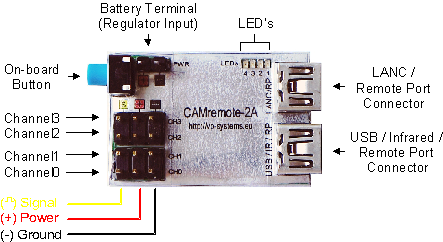
The CR can take its power from an R/C receiver connected to any of CR's channels (CH0-CH3) or can be powered from any power source through Battery terminal/Regulator Input (PWR) or power supply pins of any channels. Note servos and our radio receiver can accept usually 4.8...7.2V otherwise the servo(s)/receiver will be damaged! Feed your power source to power pins of the any channels if voltage is less than 5..7V (depends of specification of your servos) otherwise connect them to Battery Terminal. The CR has onboard 5V regulator on Battery Terminal which regulates input voltage to 5V. Supply voltage pins are (+) and (-) on any channels (CH0-CH2, CH3*) and Battery Terminal (PWR). So, if you connect power source to Battery Terminal then there is no need to connect power source to power pins of any channel because there will be regulated voltage 5V (or less depends of level of power source).
* CAMremote-2A only
Onboard LED's
The CR has 4 Light Emitting Diodes (LED's) on board where LED's #1...#3 are red (or yellow) and #4 is green. The LED's show the state of the CR (green LED blinks quickly) when it performs operations. During photography session when green LED is on, red LED's show code of active configuration profile. At startup the CR goes to profile changing mode and LEDs of active configuration are blinking several seconds. Indication codes of the configurations are shown in each configuration tab on software window (see more info from chapter Configuration Software).
Channels
The CR has 3 or 4* bidirectional channels (CH0 – CH2, CH3*) which receive signals from an R/C receiver (or any other electronics device including mechanical switches) in order to control the functionality of CR. In automatic mode (Intervalometer or Panorama modes) the CR drives servo motors which can be connected to CH0 and CH1. Channel CH2/CH3* is used for servo “finger” if needed (custom functionality is also possible upon request).
* CAMremote-2A only
A USB (USB/IR/RP) Connector
USB Connector is used to connect CR to camera or to PC. Only the red LED #1 is lit (not blinking) when CR is connected to a PC. Note USB connector is shared with IR connector on CAMremote-2A.
Alternative function of USB Connector is to control the REMOTE PORT/E3A using a special cable.
A USB (LANC/RP) Connector
USB Connector is used to connect LANC, Sony's MULTITERMINAL or Remote Port controllable device to camera. This connector can be used also to connect extra servo motors or I2C interface devices with CR. Alternative functions are not described in User Manual.
Infrared LED Connector
Connect the infrared LED cable plug to this connector and mount the infrared LED close to the camera's IR sensor. If tiny IR plug is used, attach CAMremote-2 board onto camera so that IR LED points to camera's IR sensor. Use tape or Velcro to attach it. Note IR connector is shared with USB connector on CAMremote-2A. Turn on IR reception mode in camera!
On-board Button
An on-board button is used to select the desired profile. A short click of the button switches the CR to profile selection mode and the onboard LED's start to blink to display the current profile identification. Pressing the button again selects the next profile and the blinking LED's display the next profile identification. If the button is not pressed for 3-4 seconds, the currently displayed profile will be selected.
Holding the button down for at least 4 seconds instructs the CR to command the camera to release the shutter. This is useful to test the readiness of the camera for a photographic session. Note that CR is able to send this command to camera only when the green LED is lit and the camera is turned on.
If the button is held down at power on, CR goes into bootloader mode (all LED's blink 8 times). The bootloader mode is useful for recovery if a firmware upgrade has failed and CR is not able to communicate with the PC.
Functions of the on-board button
|
Short click |
Profile selection mode, on-board LED's start to blink showing current profile identification |
|
After short click, press the button until the LED's show the desired profile |
Select next profile |
|
3-4 sec click and hold |
Shutter release |
|
Hold down at the power on moment |
Bootloader mode, LED's blink 8 times |
Video Overlay Connector
This connector is reserved for future use.
Configuration Software
The CR is programmable using PC with special configuration software. The software runs on Microsoft Windows operating systems (2000, XP, Vista) and CR requires one free USB port. No driver installation is required. The “New Hardware Found” message appears on the screen when CR is first connected to the PC and the operating system automatically installs a suitable driver. Once installed, the configuration software may be run. A screenshot of the software is shown in the following picture.

When the software starts up, it automatically attempts to read configuration data from CR and displays any retrieved items on screen.
Seven user configurable profiles are available. Click on tabs Set#1...Set#7 to open a specific profile for configuration. Every profile includes a graphical representation of CR's on-board LEDs. When CR's on-board LED's are lit in the same configuration the specific profile is selected and active. Note that this profile identification is displayed only when the green LED is lit, otherwise CR may show other operational information on the LED's.
The button Get settings from CAMremote reads the configuration data from CR. Click on it if CR is connected to the PC after the software has been started. The button Save settings to CAMremote stores all configuration data to CR. Click on it when all profile configurations are completed. This will store all profiles in CR. The CR may now be removed from the PC. After each save of the settings the CR is restarting thus red error message may appear shortly on display. This is normal behavior.
When configuration is completed, the profile settings can be exported to Notepad for printing by clicking on Profiles to Notepad from File menu. Printed copy would be like a reminder when choosing profiles in the field.
Firmware Upgrade
The firmware of the CR is upgradeable by the user. The configuration software checks the firmware version of CR when the software starts or by pressing the Get settings from CAMremote button. The software will suggest that the user upgrade the firmware if it is an older version. Press Yes button to perform an upgrade. You can perform a firmware upgrade (or downgrade) manually by selecting Update Firmware from Tools menu.
Camera Settings
Settings for ISO Speed, Zoom, Image Size, Quality and White Balance are beyond the scope of this document. They may be found in the camera's User Manual.
The CR software will enable/disable various settings according to selected items. This will helps the user to understand which features are available or unavailable in specific modes.
Camera
Choose the exact model of your camera from the list because configuration parameters will vary according to the selected camera. If the camera is not listed, choose the closest model. When use of a camera with CHDK firmware add-on is desired, select from the list Any (CHDK Compatible). When use of a simple servo-triggered camera choose Any (Uses servo control only). Use Any (Remote Port Compatible) if camera with 3-pin Remote Port are used.
Cable/Method
Choose a suitable control mode depending on the method you would like CR to interface with your camera: using USB/PTP, IR, USB/CHDK, USB/CHDK+, USB/CA1, PORT/E3A or Servo. This list will vary according to the selected camera model. Note: when USB/PTP mode is selected CR attempts to communicate with camera before it will be ready for shooting. The red LED #1 blinks at every 3sec intervals until CR is not able to negotiate with camera. Other modes are ready for shooting immediately after power on because there is no negotiation phase with camera.
The CR generates pulses on USB when performing commands with USB/CHDK or USB/CHDK+ method. Commands and pulse widths are shown in following table. Use them in your CHDK scripts to detect a right command and instruct the camera to perform the operation.
-
Command
Pulse width (USB/CHDK Method)
Pulse width (USB/CHDK+ Method)
Shoot
10 / 635 ms*
15 ms
Focus
65 ms
35 ms
Focus release
125 ms
55 ms
Zoom In
185 ms
75 ms
Zoom Out
255 ms
95 ms
Record video
325 ms
115 ms
Aperture increase (Av+)
385 ms
135 ms
Aperture decrease (Av-)
445 ms
155 ms
Shutter speed increase (Tv+)
505 ms
175 ms
Shutter speed decrease (Tv-)
565 ms
195 ms
Stop video record
625 ms
215 ms
Close lens
685 ms
415 ms
Power Off
745 ms
500 ms
ISO+ 805 ms 435 ms ISO- 865 ms 460 ms
Program (USB/PTP only)
Choose a suitable program from list. Setting options, including Auto, Aperture priority, Shutter priority are not described here but may be found in the camera's User Manual.
The selection 'M' settings (Set on field) uses the camera's last settings which were manually set when the camera dial was on the 'M' position. This allows the photographer to set the camera settings manually before starting a new photography session with CR. Note that some cameras have C1 and C2 settings but those are not accessible in USB/PTP mode and will be ignored.
The selection CAMremote settings allows the CR to use settings (Tv, Av, ISO, Quality/Size, White Balance) set by the configuration software. Note when CAMremote settings is selected it will overwrite the camera's last manual settings during photography session.
Focus (USB/PTP only)
Manual focus is not available in USB/PTP mode on Canon PowerShot cameras. A workaround is to point the camera toward an object, command CR to perform focusing, and then lock the focus. Note that focusing always takes time before shooting so try to keep the need for focusing minimal if fast shooting is important. Choose a suitable focusing method from the list according to your requirements. Re-focusing can controlled manually by the user during photography session when choosing Re-focus/lock controllable by Channel0. Read more info from chapter Device Settings.
Extra Settings (USB/PTP only)
Full automatic shooting, ignores manual settings (lens opens at shoot) – This setting uses camera feature to open lens and shoot picture using automatic shutter speed and aperture parameters and ignoring all user settings. This is same command Windows sends to camera when user clicks on Take a new picture link on the Camera Task window (XP, Vista only). After shooting the camera closes the lens.
Wait Channel0 or button event before open lens (green LED blinks when waiting) – This setting waits for an external signal to be applied to Channel0 or waits for a button click before CR opens the lens. This is useful when CR and the camera are powered up but there is need to protect the camera lens during the setup of the photographing system (pole, helicopter/plane/kite lift-off etc).
Open lens only at shoot command (saves camera's battery during idle) – This setting opens the lens only when shoot command is detected. The CR applies all settings to the camera which are defined in the Camera Settings frame of the configuration software. Note: it requires a few seconds before the camera opens the lens, starts up and is able to shoot a photo. This is useful when using long time photography like astronomy, observing plant growth etc. After shooting the Camera closes the lens and thus the camera goes into low power mode.
Lens and video off after 3 min idle until user involve (saves camera's battery) – This setting enables the power save feature of the camera where after 3 minute idle time (no activity on input channels, button or intervalometer) the camera closes the lens and goes into low power mode. Any interruption from channels, button or intervalometer will wake the camera up. Note: it requires a few seconds before the camera opens the lens, starts up and is able to shoot photos.
Keep camera's LCD on at shooting (disables video out) – This setting turns the LCD on and disables the video signal on the video terminal. This is useful when testing the CR on the bench.
Device Settings
Device settings let the user choose the operating mode of the CR and configure several servo motor related parameters.
Note that power off, zoom, focus, lens control and Tv/Av (shutter speed/aperture) control are available only if your camera supports USB/PTP mode. For CHDK-compatible cameras, special CHDK scripts may be used to control a variety of camera settings and features. More info about CHDK scripts will be available on the CR web page.
Control Mode
Control Mode setting is used to set how CR is controllable: externally (Manual) by user (or any electronic device) or internally (Automatic) by CR program. Channels CH0-CH2 of the CR can be inputs or outputs depending of selected mode. There are several options how CR can be controlled. More info about these options are listed below. Note not all options which are in list of configuration software are not described here, several of them are under development.
Manual: RC receiver (CH0=Shoot, CH1=Zoom, CH2=Alt)
This mode
configures Channel0-2 (CH0-CH2) to inputs and shoot, zoom and Tv/Av
parameters are externally controllable by RC receiver. Channels are
sensible to pulse width coding signal. Most RC transmitters/receivers
are generating pulse width from 1 milliseconds (0%) to 2 milliseconds
(100%) according to position of lever on control panel of
transmitter. Descriptions of lever positions and how CR interprets
them are shown in following picture.

CH2 is used to define functionality of CH0 and CH1. When CH2 is on idle position or left connected then CH0 can be used to trigger the shutter, re-focus (optional, depending on Focus setting) and lens on/off control and CH1 can be used to control the zoom of the camera. Move lever to 100% to shoot the photo. Keep it on that position to repeat a shooting. Move it to center position to stop shooting. Camera closes the lens if lever is set to minimum position (0%) and wakes up when moved away from minimum position. Useful before completing the session to keep camera in safe condition (during descent of the drone/copter/kite/pole/blimp etc).
When
CH2 is at maximum position (100%) then CH0 can be used to change
shutter speed value and CH1 can be used to change aperture value.
Value increases by one step if lever is set to max position and
decreases when position is set to min. Center position is idle.
When
CH2 is at minimum position (0%) then CH0 can be used to change
configuration profile. Move CH0 lever to 0% and back to idle position
to change profile to previous one. Move CH0 lever to 100% and back to
idle position to change profile to next one. Note: only same type of
Control Mode profiles are available, others are ignored. Use on-board
button to change any profile.
Manual: RC receiver (CH0=Execute, CH1=Function)
This mode configures Channel0-1 (CH0-CH1) to inputs and CR functionality is manually controllable by general RC transmitter/receiver. Channels are sensible to pulse width coding signal. Most RC transmitters/receivers are generating pulse width from 1 milliseconds (0%) to 2 milliseconds (100%) according to position of lever/potentiometer on control panel of transmitter. Channel0 is used to execute function which is selected by Channel1. Use lever control for CH0 (Execute) and potentiometer control for CH1 (function selection). Descriptions of transmitter controls positions and how CR interprets them are shown in following table.
|
Channel1 Position |
Channel0 Position |
||||
|
0..20% |
21..39% |
40..60% |
61..80% |
81..100% |
|
|
Not used |
- |
Focus release |
Idle |
Auto focus |
Shoot |
|
0..10% |
- |
Focus release |
Idle |
Auto focus |
Shoot |
|
11..20% |
Manual focus drive down (2x step) |
Manual focus drive down (1x step) |
Idle |
Manual focus drive up (1x step) |
Manual focus drive up (2x step) |
|
21..30% |
Zoom out |
Idle |
Zoom in |
||
|
31..40% |
Tv- |
Tv- |
Idle |
Tv+ |
Tv+ |
|
41..50% |
Av- |
Av- |
Idle |
Av+ |
Av+ |
|
51..60% |
ISO- |
ISO- |
Idle |
ISO+ |
ISO+ |
|
61..70% |
- |
- |
Idle |
- |
- |
|
71..80% |
Stop video recording |
Idle |
Start video recording |
||
Note:
User can test transmitter/receiver setup and see how CR interprets
transmitter controls by PC. Connect CR to USB port of the PC and
connect control channels from radio receiver to CH0 and CH1 of the
CR. Run configuration software, choose from Device Settings
frame -> Control Mode: Manual: RC
receiver (CH0=Execute,
CH1=Function) and save settings by clicking on Save
Settings
to CAMremote button. Messages (similar to table above) will
appear to status bar (bottom line, third field) which shows
interpretation result of CH0 and CH1 signals. Change
lever/potentiometer on transmitter and follow messages on screen.
Attach for example sticky paper close to lever and potentiometer and
mark
positions and respective functions to it.
Manual: RC receiver (CH0=Record/AF/Shoot)
This mode configures Channel0 (CH0) to input and movie recording, focusing and shutter release are externally controllable by RC receiver. Channel0 is sensible to pulse width coding signal. Most RC transmitters/receivers are generating pulse width from 1 milliseconds (0%) to 2 milliseconds (100%) according to position of lever (throttle for example) on control panel of transmitter. Descriptions of lever position and how CR interpret it is shown in following table.
| Channel 0 (CH0) | |
| Position (Pulse width) | Feature |
| 0..10% (0.9-1.1ms) | Camera Standby/Power Off |
| 10..40% (1.1-1.4ms) | Toggle Movie Recording * |
| 40..60% (1.4-1.6ms) | Idle |
| 60..70% (1.6-1.7ms) | Autofocus (if enabled in Configuration software, 'Focus' selection) |
| 70..90% (1.7-1.9ms) | Single Shoot * |
| 90..120% (1.9-2.1ms) | Shoot Continuously |
* Requires Idle signal before accepting next command
Manual: RC receiver (CH0=Record/AF/Shoot, CH1=Record)
This mode is identical to mode above about Channel 0. Channel1 (CH1) is used to control movie recording of the camera. Channel0/1 are sensible to pulse width coding signal and are controllable by RC receiver. Most RC transmitters/receivers are generating pulse width from 1 milliseconds (0%) to 2 milliseconds (100%) according to position of lever (throttle for example) on control panel of transmitter. Descriptions of lever position and how CR interpret it is shown in following table.
| Channel 0 (CH0) | |
| Position (Pulse width) | Feature |
| 0..10% (0.9-1.1ms) | Camera Standby/Power Off |
| 10..40% (1.1-1.4ms) | Toggle Movie Recording * |
| 40..60% (1.4-1.6ms) | Idle |
| 60..70% (1.6-1.7ms) | Autofocus (if enabled in Configuration software, 'Focus' selection) |
| 70..90% (1.7-1.9ms) | Single Shoot * |
| 90..120% (1.9-2.1ms) | Shoot Continuously |
| Channel 1 (CH1) | |
| Position (Pulse width) | Feature |
| 40..60% (1.4-1.6ms) | Idle (Unlock for next command) |
| 60..120% (1.6-2.2ms) | Toggle Movie Recording * |
* Requires Idle signal before accepting next command
RC receiver (CH0=Record/AF/Shoot, CH1=SmoothZoom, CH2=Alt)
This mode is identical to mode above about Channel 0. Channel1 (CH1) is used to control zoom of the camera. Channel2 (CH2) is used to execute User defined LANC command. Channel0/1/2 are sensible to pulse width coding signal and are controllable by RC receiver. Most RC transmitters/receivers are generating pulse width from 1 milliseconds (0%) to 2 milliseconds (100%) according to position of lever (throttle for example) on control panel of transmitter. Descriptions of lever position and how CR interpret it is shown in following table.| Channel 0 (CH0) | |
| Position (Pulse width) | Feature |
| 0..10% (0.9-1.1ms) | Camera Standby/Power Off |
| 10..40% (1.1-1.4ms) | Toggle Movie Recording * |
| 40..60% (1.4-1.6ms) | Idle |
| 60..70% (1.6-1.7ms) | Autofocus (if enabled in Configuration software, 'Focus' selection) |
| 70..90% (1.7-1.9ms) | Single Shoot * |
| 90..120% (1.9-2.1ms) | Shoot Continuously |
| Channel 1 (CH1) | |
| Position (Pulse width) | Feature |
| 0..40% (1.0-1.4ms) | Zoom Out (Variable speed if camera support it) |
| 40..60% (1.4-1.6ms) | Idle |
| 60..100% (1.6-2.0ms) | Zoom In (Variable speed if camera support it) |
| Channel 2 (CH2) | |
| Position (Pulse width) | Feature |
| 0..30% (0.9-1.3ms) | User Defined LANC Command (Field 'At 30%' in Configuration software) |
| 30..70% (1.3-1.7ms) | Idle (Unlock for next command) |
| 70..120% (1.7-2.2ms) | User Defined LANC Command (Field 'At 70%' in Configuration software) |
* Requires Idle signal before accepting next command
RC receiver (CH0=Record/AF/Shoot, CH1=Av, CH2=Tv, CH3=ISO)
This mode is identical to mode above about Channel 0. Channel1 (CH1) is used to control aperture of the camera. Channel2 (CH2) is used to control shutter speed of the camera. Channel3 (CH3) is used to control ISO value of the camera. Channel0/1/2/3 are sensible to pulse width coding signal and are controllable by RC receiver. Most RC transmitters/receivers are generating pulse width from 1 milliseconds (0%) to 2 milliseconds (100%) according to position of lever (throttle for example) on control panel of transmitter. Descriptions of lever position and how CR interpret it is shown in following table.| Channel 0 (CH0) | |
| Position (Pulse width) | Feature |
| 0..10% (0.9-1.1ms) | Camera Standby/Power Off |
| 10..40% (1.1-1.4ms) | Toggle Movie Recording * |
| 40..60% (1.4-1.6ms) | Idle |
| 60..70% (1.6-1.7ms) | Autofocus (if enabled in Configuration software, 'Focus' selection) |
| 70..90% (1.7-1.9ms) | Single Shoot * |
| 90..120% (1.9-2.1ms) | Shoot Continuously |
| Channel 1 (CH1) | |
| Position (Pulse width) | Feature |
| 0..40% (0.9-1.4ms) | Aperture/Iris decrement * |
| 40..60% (1.4-1.6ms) | Idle (Unlock for next command) |
| 60..120% (1.6-2.2ms) | Aperture/Iris increment * |
| Channel 2 (CH2) | |
| Position (Pulse width) | Feature |
| 0..30% (0.9-1.3ms) | Shutter Speed decrement * |
| 30..70% (1.3-1.7ms) | Idle (Unlock for next command) |
| 70..120% (1.7-2.2ms) | Shutter Speed increment * |
| Channel 3 (CH3) | |
| Position (Pulse width) | Feature |
| 0..30% (0.9-1.3ms) | ISO decrement * |
| 30..70% (1.3-1.7ms) | Idle (Unlock for next command) |
| 70..100% (1.7-2.0ms) | ISO increment * |
* Requires Idle signal before accepting next command
RC receiver (CH0=Record/AF/Shoot, CH1=MF, CH2=Av/AutoAv)
| Channel 0 (CH0) | |
| Position (Pulse width) | Feature |
| 0..10% (0.9-1.1ms) | Camera Standby/Power Off |
| 10..40% (1.1-1.4ms) | Toggle Movie Recording * |
| 40..60% (1.4-1.6ms) | Idle |
| 60..70% (1.6-1.7ms) | Autofocus (if enabled in Configuration software, 'Focus' selection) |
| 70..90% (1.7-1.9ms) | Single Shoot * |
| 90..120% (1.9-2.1ms) | Shoot Continuously |
| Channel 1 (CH1) | |
| Position (Pulse width) | Feature |
| 0..40% (0.9-1.4ms) | Manual Focus Drive - |
| 40..60% (1.4-1.6ms) | Idle |
| 60..120% (1.6-2.2ms) | Manual Focus Drive + |
| Channel 2 (CH2) | |
| Position (Pulse width) | Feature |
| 0..20% (1.0-1.2ms) | Aperture/Iris decrement * |
| 20..40% (1.2-1.4ms) | Aperture/Iris decrement (continuous) |
| 40..60% (1.3-1.7ms) | Idle (Unlock for next command) |
| 60..70% (1.6-1.7ms) | Auto Iris (apply signal at least 1-2 sec) |
| 70..90% (1.7-1.9ms) | Aperture/Iris increment * |
| 90..120% (1.9-2.2ms) | Aperture/Iris increment (continuous) |
* Requires Idle signal
before accepting next command
S.BUS on CH0: (F1=Record/AF/Shoot, F2=Zoom, F3=Av, F4=Tv, F5=ISO)
This mode is used to work with S.BUS compatible radios. Channel0 (CH0) is used to connect S.BUS adapter which is connected to S.BUS port of the receiver. There are 5 feature groups (F1...F5) which can be assigned to S.BUS channels by Configuration Software. Choose appropriate S.BUS channels in S.BUS Channel Settings frame in Configuration Software. Most RC transmitters/receivers are generating pulse width from 1 milliseconds (0%) to 2 milliseconds (100%) according to position of lever (throttle for example) on control panel of transmitter. Descriptions of lever position and how CR interpret it is shown in following table.| Feature Group 1 (#1) | |
| Position (Pulse width) | Feature |
| 0..10% (0.9-1.1ms) | Camera Standby/Power Off |
| 10..40% (1.1-1.4ms) | Toggle Movie Recording * |
| 40..60% (1.4-1.6ms) | Idle |
| 60..70% (1.6-1.7ms) | Autofocus (if enabled in Configuration software, 'Focus' selection) |
| 70..90% (1.7-1.9ms) | Single Shoot * |
| 90..120% (1.9-2.1ms) | Shoot Continuously |
| Feature Group 2 (#2) | |
| Position (Pulse width) | Feature |
| 0..40% (1.0-1.4ms) | Zoom Out (Variable speed if camera support it) |
| 40..60% (1.4-1.6ms) | Idle |
| 60..100% (1.6-2.0ms) | Zoom In (Variable speed if camera support it) |
| Feature Group 3 (#3) | |
| Position (Pulse width) | Feature |
| 0..30% (0.9-1.3ms) | Aperture/Iris decrement * |
| 30..70% (1.3-1.7ms) | Idle (Unlock for next command) |
| 70..120% (1.7-2.2ms) | Aperture/Iris increment * |
| Feature Group 4 (#4) | |
| Position (Pulse width) | Feature |
| 0..30% (0.9-1.3ms) | Shutter Speed decrement * |
| 30..70% (1.3-1.7ms) | Idle (Unlock for next command) |
| 70..120% (1.7-2.2ms) | Shutter Speed decrement * |
| Feature Group 5 (#5) | |
| Position (Pulse width) | Feature |
| 0..30% (0.9-1.3ms) | ISO decrement * |
| 30..70% (1.3-1.7ms) | Idle (Unlock for next command) |
| 70..120% (1.7-2.2ms) | ISO increment * |
* Requires Idle signal before accepting next command
Example - Assign Recording/AF/Shoot control to S.BUS channel 7 and Zoom control to channel 12: Choose channel value '7' in drop-down list '#1' in S.BUS Channel Settings frame. Choose channel value '12' in drop-down list '#2'. Save settings to CR. Now channel 7 on your transmitter is controlling Feature Group #1 which is Recording/AF/Shoot control and channel 12 is controlling Feature Group #2 which is Zoom control.
Arducopter: (CH0/2=Record/Shoot, CH1=Zoom/Record/CamOn+Off)
This mode configures Channel0-1 (CH0-CH1) to inputs and CR functionality is manually controllable by Arduino/Pixhawk systems or general RC transmitter/receiver systems. Channel0 and Channel2 are identical and can be used to control Movie Recording, AF and shutter release. Channel1 is used to control zoom, movie recording or wakeup/sleep of the camera. Arduino/Pixhawk autopilot can control Channel0. Channel1-Channel2 can be controlled manually by radio. Channel0..2 are sensible to pulse width coding signal. Most RC transmitters/receivers are generating pulse width from 1 milliseconds (0%) to 2 milliseconds (100%) according to position of lever (throttle for example) on control panel of transmitter. Descriptions of lever position and how CR interpret it is shown in following table.| Channel 0 (CH0) & Channel 2 (CH2) | |
| Position (Pulse width) | Feature |
| 0..40% (0.9-1.4ms) | Toggle Movie Recording * |
| 40..60% (1.4-1.6ms) | Idle |
| 60..90% (1.6-1.9ms) | Single Shoot * |
| 90..120% (1.9-2.2ms) | Shoot Continuously |
| Channel 1 (CH1) | |
| Position (Pulse width) | Feature |
| 0..20% (0.9-1.2ms) | Toggle Camera Standby/Wakeup * |
| 20..40% (1.2-1.4ms) | Zoom Out |
| 40..60% (1.4-1.6ms) | Idle (Unlock for next command) |
| 60..80% (1.6-1.8ms) | Zoom In |
| 80..120% (1.8-2.2ms) | Toggle Movie Recording * |
* Requires Idle signal before accepting next command
Mikrokopter: (CH0=Record/Shoot, CH1=Zoom)
This mode configures Channel0-1 (CH0-CH1) to inputs and CR functionality is manually controllable by Arduino/Pixhawk systems or general RC transmitter/receiver systems. Channel0 is used to control Shutter Release and Movie Recording. Channel1 is used to control zoom. Channel0/1 are sensible to pulse width coding signal. Most RC transmitters/receivers are generating pulse width from 1 milliseconds (0%) to 2 milliseconds (100%) according to position of lever (throttle for example) on control panel of transmitter. Descriptions of lever position and how CR interpret it is shown in following table.| Channel 0 (CH0) | |
| Position (Pulse width) | Feature |
| 0..40% (0.7-1.4ms) | Toggle Movie Recording * |
| 40..60% (1.4-1.6ms) | Idle |
| 60..150% (1.6-2.5ms) | Shoot Continuously |
| Channel 1 (CH1) | |
| Position (Pulse width) | Feature |
| 0..40% (0.7-1.4ms) | Zoom Out |
| 40..60% (1.4-1.6ms) | Idle (Unlock for next command) |
| 60..150% (1.6-2.5ms) | Zoom In |
* Requires Idle signal before accepting next command
Manual: Rising edge sense (CH0=Shoot, CH1=Zoom+, CH2=Zoom-)
This setting configures CH0-CH2 to inputs where shoot (CH0), zoom-in (CH1) and zoom-out (CH2) are externally controllable by rising edge of the signal. Signal source can be whatever electronic device like microcontroller, motion detector or simple switch (or button) which provides voltage to input pin(s). Simplest way to generate rising edge signal is to short Signal and (+) pins for a moment.
Manual: By DuneCam (shutter/zoom/settings via CH0)
This setting configures CH0 to input and shoot, zoom, lens open/close and Tv/Av settings are externally controllable by DuneCam or any other programmable electronic system. CH0 is sensible to pulse width coding signal. Pulse width and its related commands are shown in following table.
-
Pulse Width
(in microseconds)
Command
2000
Shoot
1900
Lens Close / Sleep
1800
Re-focus / Lock focus
1700
Zoom-In
1600
Zoom-Out
1500
Next Profile
1400
Previous Profile
1300
Shutter speed increase (Tv+)
1200
Shutter speed decrease (Tv-)
1100
Aperture increase (Av+)
1000
Aperture decrease (Av-)
Use scripts to perform Lens close/open, Zoom, Tv/Av and Profile change. Use Shoot command to wake up the camera if it was commanded to sleep.
Manual: RC4 at CH0 (A=ZoomOut, B=ZoomIn, C=Shoot, D=Pause)
This setting configures CH0 to input mode and shoot, zoom, pause settings are manually controllable by keyfob-sized radio transmitter/receiver devices. Meaning of buttons A-D on transmitter can be customized upon request.
Camera Control #1: 8/12B-Radio+FC+RC (CH0=RX, CH1/CH2=Rec/Shoot)
This setting configures CH0 to accept commands from 433 MHz radio module. Functional description of 12-button transmitter and how CR interprets pressed buttons are shown in following table. Note camera control features shown in table are supported only if camera is supporting these features.
Channel1-2 (CH1-CH2) are inputs to PWM signals and CR functionality is
manually controllable by
Arduino/Pixhawk/MK systems or
general RC transmitter/receiver systems.
Channel1 is used to control zoom. Channel2 can be used to control Movie
Recording, AF and shutter release. Channel1..2 are
sensible to pulse width coding signal. Most RC transmitters/receivers
are generating pulse width from 1 milliseconds (0%) to 2 milliseconds
(100%) according to position of lever (throttle for example) on control
panel of
transmitter. Descriptions of lever position and how CR interpret it is
shown in following table.
|
8-Button Transmitter |
||
| Button # | Function | 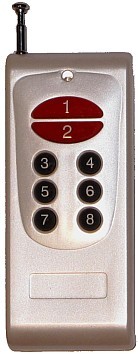 |
|
1 |
Undefined |
|
|
2 |
Undefined |
|
|
3 |
Undefined |
|
|
4 |
Undefined |
|
|
5 |
Undefined |
|
|
6 |
Undefined |
|
|
7 |
Shoot / Binding |
|
|
8 |
Combined or Alternate function: Hold down 6 sec to change profile and then choose new profile by pressing on profile number 1-7** |
|
|
8+1 |
Tv+ |
|
|
8+2 |
Tv- |
|
|
8+3 |
Av+ |
|
|
8+4 |
Av- |
|
|
8+5 |
ISO+ |
|
|
8+6 |
Toggle Wakeup/Sleep (Open/Close lens) |
|
|
8+7 |
Start/stop video recording |
|
| 12-Button Transmitter |
||
| Button # | Function |  |
| 1 | Zoom In | |
| 2 | Manual Focus Drive - | |
| 3 | Manual Focus Drive + | |
| 4 | Zoom Out | |
| 5 | Av- | |
| 6 | Av+ | |
| 7 | Tv- | |
| 8 | Tv+ | |
| 9 | AF | |
| 10 | Start/stop video recording | |
| 11 | AF+Shoot / Binding | |
| 12 | Combined (see below buttons 12+1...12+3) or Alternate function: Hold down 6 sec to change profile and then choose new profile by pressing on profile number 1-7** | |
| 12+1 | Toggle Wakeup/Sleep | |
| 12+2 | ISO- | |
| 12+3 | ISO+ | |
**
If selected profile doesn't have radio control related then further
radio control wont be possible.
| Channel 2 (CH2) | |
| Position (Pulse width) | Feature |
| 0..40% (0.9-1.4ms) | Toggle Movie Recording * |
| 40..60% (1.4-1.6ms) | Idle |
| 60..90% (1.6-1.9ms) | Single Shoot * |
| 90..120% (1.9-2.2ms) | Shoot Continuously |
| Channel 1 (CH1) | |
| Position (Pulse width) | Feature |
| 20..40% (1.2-1.4ms) | Zoom Out |
| 40..60% (1.4-1.6ms) | Idle (Unlock for next command) |
| 60..80% (1.6-1.8ms) | Zoom In |
* Requires Idle signal before accepting next command
Manual: 4/8/12 Button Radio (CH0=Radio, CH1=Tilt, CH2=Pan, CH3=Z/R)
This setting configures CH0 to accept commands from radio module and manually control tilt and pan servos. Tilt servo is connected to CH1, and a pan servo is connected to CH2. Optional zoom/roll servo is connected to CH3. Functional descriptions of 4, 8, 12-button transmitters and how CR interprets them are shown in following table.
|
4-Button Transmitter |
||
| Button # | Function |  |
|
1 |
Shoot/Binding |
|
|
2 |
Drive tilt servo up |
|
|
3 |
Drive tilt servo down |
|
|
4 |
Combined function with other button |
|
|
4+1 |
Close lens |
|
|
4+2 |
Drive pan servo right |
|
|
4+3 |
Drive pan servo left |
|
|
8-Button Transmitter |
||
| Button # | Function | |
|
1 |
Drive tilt servo up |
|
|
2 |
Drive tilt servo down |
|
|
3 |
Drive pan servo right |
|
|
4 |
Drive pan servo left |
|
|
5 |
Zoom in + (roll or zoom) servo up on IR/CH3 channel* |
|
|
6 |
Zoom out + (roll or zoom) servo down on IR/CH3 channel* |
|
|
7 |
Shoot / Binding |
|
|
8 |
Combined or Alternate function: Hold down 6 sec to change profile and then choose new profile by pressing on profile number 1-7** |
|
|
8+1 |
Tv+ |
|
|
8+2 |
Tv- |
|
|
8+3 |
Av+ |
|
|
8+4 |
Av- |
|
|
8+5 |
ISO+ |
|
|
8+6 |
Toggle Wakeup/Sleep (Open/Close lens) |
|
|
8+7 |
Start/stop video recording |
|
|
12-button Transmitter |
||
| Button # | Function | 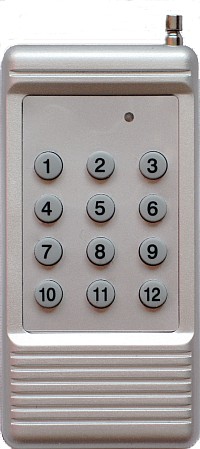 |
|
1 |
Zoom in + (roll or zoom) servo up on IR/CH3 channel* |
|
|
2 |
Drive tilt servo up |
|
|
3 |
Drive pan servo right |
|
|
4 |
Drive pan servo left |
|
|
5 |
Drive tilt servo down |
|
|
6 |
Zoom out + (roll or zoom) servo down on IR/CH3 channel* |
|
|
7 |
Shoot / Binding |
|
|
8 |
Start/stop video recording |
|
|
9 |
Activate profile change and then choose new profile by pressing on profile number 1-7** |
|
|
10 |
Av- |
|
|
11 |
Av+ |
|
|
12+2 |
Tv- |
|
|
12+3 |
Tv+ |
|
|
12+5 |
Toggle Wakeup/Sleep (Open/Close lens) |
|
| 12-Button Transmitter |
||
| Button # | Function | |
| 1 | Drive tilt servo up | |
| 2 | Drive pan servo right | |
| 3 | Drive pan servo left | |
| 4 | Drive tilt servo down | |
| 5 | Zoom in + (roll or zoom) servo up on IR/CH3 channel* | |
| 6 | Zoom out + (roll or zoom) servo down on IR/CH3 channel* | |
| 7 | Av- | |
| 8 | Av+ | |
| 9 | AF | |
| 10 | Start/stop video recording | |
| 11 | Shoot / Binding | |
| 12 | Combined (see below buttons 12+1...12+3) or Alternate function: Hold down 6 sec to change profile and then choose new profile by pressing on profile number 1-7** | |
| 12+1 | Toggle Wakeup/Sleep | |
| 12+2 | Tv- | |
| 12+3 | Tv+ |
|
* Zoom can be controlled electronically through USB if camera support it and can be controlled also by external servo motor through IR port (CR2) or CH3 (CR2A) as well. IR/CH3 channels can drive roll servo instead of zoom if zoom is not planned to use.
**
If selected profile doesn't have radio control related then further
radio control wont be possible.
Binding
is needed after power on the CR to get CR recognize the transmitter.
Press binding button on transmitter after powering up the CR. Green LED
will blink on CR after pressing the binding button. Usually binding key
on transmitter is assigned to shutter release function so if camera is
connected and turned on then camera may shoot the photo as well. See
table above to find out which key is assigned to binding.
Tilt
and Roll/Zoom servo parameters can be defined in Tilt Servo
Position frame. Value #1 defines initial
position of the
tilt servo and value #2 defines step size of the
tilt servo movement. Value
Apply Time is used to define
driving time (continuous
or limited time only). For example if #1 is
0° and #2
is 10° then servo makes ±10° step at every
tilt command
(direction is depending of #2 sign). If values #1
and #2
are None then CR is using internal predefined
values. User can
test these values on real servos by pressing
|> button. Servo must be connected to
CH1.
Activate the zoom/pan function by choosing type of
selected servo in Camera
Settings frame. Value Zoom/Roll Servo is
used for systems where belt is used to drive zoom lenses. Value Zoom Servo (3-pos)
is used for systems where servo is driving zoom 3-position knob on
camera. Value #4 defines initial
position of the zoom/pan servo and value #5
defines step size of the zoom/pan servo movement. If 3-position zoom
servo control is selected then only one step is applied to zoom servo
and it automatically moves back into initial position. These
values can be tested also by pressing
|> button. Servo must be
connected to CH1 during test. After successful tests connect it to CH3.
Pan servo parameters can be defined in Pan Servo frame. Value Starting Position defines initial position of the servo and value Next ±Position defines step size of the movement. Value Apply Time is used to define driving time (continuous or limited time only). You can test these values on real servos by pressing |> CH0 or |> CH2 buttons (depends where servo is connected).
Parachute Kit: (CH0=433MHz Radio, CH1=RX, CH2=Servo)
This setting is dedicated to trigger Parachute Rescue Kit from Opale's Paramodels. Channel 0 is used to receive radio commands through our 433MHz radio receiver. Channel 2 is used to control servo which triggers launching mechanism of the Parachute Kit.Manual: Switch (CH0=Shoot, CH1=Focus+, CH2=Focus-, CH3=Record)
This setting is dedicated mostly for DSLR cameras where shooting, manual focus drive and video record/stop can be controlled by connecting (S) terminal to (-) terminal of CH0-CH3 respectively.
Auto: Intervalometer
This setting sets CR to an automatic shooting mode where the shooting interval and count are user selectable. Choose the maximum number of shots desired from the Total Shots list and the desired time interval between shots from the Interval list. Note: the shooting operation requires a few seconds to complete which causes an additional delay to the interval. Select the value Minimum from the Interval list if the fastest possible shooting is required. The camera closes the lens and goes into sleep mode when the shooting counter reaches the maximum value selected from the Total Shots list (USB/PTP mode only). Hold down the onboard button for 3-4 sec to restart the shooting sequence.
Auto: HoVer ('V'-pattern motion, CH0=Pan, CH1=Tilt)
This setting sets CR to an automatic shooting mode with programmable pan and tilt positions. A normal or 360° modified pan servo is connected to CH0, and a tilt servo is connected to CH1. Depending on the camera being used, the user can choose to trigger the camera using USB, IR, or a finger-servo. The pan and tilt positions are programmable via the Tilt Servo Positions and Pan Servo items. The CR uses the following sequence when controlling the servos: tilt to position #1, position #2, position #3, position #4, position #5, then pan using user-selected Next ±Position and Apply Time values. CR then repeats the sequence until reaching number of Total Steps value. After reaching this value the CR drives servo to Starting Position (if this value is other than SR360° which means 360° modified servo is used) and starts panning sequence at the beginning. At every tilt position, the camera shoots the number of photos chosen in the Number of Shots list. The CR completes shooting when number of Total Shots (in Intervalometer frame) is reached. To prevent camera shake due to servo movements, select suitable time values from the lists Delay Before and Delay After. If IR is selected from the Cable/Method in Camera Settings frame, use suitable Delay After value to allow camera to complete the shoot command before next step (usually 3-7 sec depends on shutter speed and image size). Please read more from Recommended pan and tilt settings below.
Auto/Manual: HoVer ('V'-pattern motion, CH0=4/8b-Radio, CH1=Tilt, CH2=Pan)
This setting is same as Auto: HoVer mode but start/stop can be manually controlled by 4-, 8- or 12-button transmitter. Radio module is connected to CH0, a normal or a 360° modified pan servo is connected to CH2, and a tilt servo is connected to CH1. Features of manual control are listed in table below.
-
4-Button Transmitter
Buttons Function 1
Start sequence
2
Pause sequence
3
Pause sequence and power off the camera
8-Button Transmitter
Buttons Function 1
Start sequence
2
Pause sequence
5
Pause sequence and power off the camera
6
Pause sequence and close lens of the camera
8
Alternate function: Hold down 6 sec to change profile and then choose new profile by pressing on profile number 1-7
Auto: Panorama (CH0=Pan)
This setting sets CR to automatic shooting mode where CH0 is driver for a horizontal (Pan) servo motor. The CH2 will be a servo-finger driver if Servo is selected from the Cable/Method in Camera Settings frame. The desired amount of pan servo rotation is user programmable via the Pan Servo list. After each servo rotation, the camera shoots the number of photos selected in the Number of Shots list. To prevent camera shake due to servo movements, select suitable time values from the lists Delay Before and Delay After. Either a 360° modified servo or a Parallax (Futaba) Continuous Rotation servo should be used. If IR is selected from the Cable/Method in Camera Settings frame, use suitable Delay After value to allow camera to complete the shoot command before next step (usually 3-7 sec depends on shutter speed and image size).
Recommended pan and tilt settings
Use Defaults button to get predefined values of servo settings.
Tilt Servo Positions is used to select desired tilt. There are 5 positions available. Choose None if you want to skip any position(s). The listed values are in microseconds or degrees (selectable from menu: Tools->Servo Units). A value of approximately 1 ms will move the tilt servo to one extreme (either horizon or straight down) and a value of approximately 2 ms will move the servo to the other extreme. A value of 1.5 ms (0°) will move the servo to a center position . These values are rules of thumb, and most servos are able to rotate more than 180°, so you can experiment with larger or smaller values too. User can test these values on real servos by pressing |> button. Servo must be connected to CH1.
Pan Servo parameters are used to control a Pan servo position. Normal or a 360° modified servo or a Parallax (Futaba) Continuous Rotation servo should be used. When a 360° modified servo is used, check checkbox 360°. Use the Next ±Position parameter to set the direction of the rotation. Usually 1.5 ms (0°) is the center point but this may vary depending of the servo. The servo rotor turns left if the value selected is less than the center value and turns right if the value selected is greater than the center value. The servo makes a smaller rotation if the value selected is closer to center point. Use the Apply Time setting to determine how long the servo motor is driving its rotor (only 360°-modified servos). For example the servo rotates about 45° (depends of servo) if the Next ±Position is set to 1.4 ms (-9°) and the Apply Time is 400ms. User can test these values on real servos by pressing |> CH0 or |> CH2 buttons (depends where servo is connected).
Pan and Tilt servos will be driven continuously by CR if Apply Time value is Always. This is recommended setting if camera is too heavy and keeping of servo position fixed is impossible during idle time. Note continuous driving consumes more current from power source than short time driving.
You
may need to experiment with different values to find a suitable
combination. Note: You
have to power up any of the
channel or PWR terminal from external power supply or battery in
order to test servos. First connect CR to USB port of the PC and
after that power up the CR from any channel or PWR terminal.
Auto/RC: HoVer 'S'-pattern motion (CH0=RC-Radio, CH1=Tilt, CH2=Pan)
Coming soonAuto/RC: HoVer+Manual (CH0=Radio, CH1=Tilt, CH2=Pan, CH3=Zoom)
Coming soonPWM Signals Tester: CH0-CH2
This setting configures CH0, CH1 and CH2 to measure pulse width of the PWM/PCM signal(s). Apply PWM/PCM signal to any of this channel and CR is going to measure it's timing in real time. Measured timings are shown in milliseconds on status bar of the configuration software:
It is useful to configure PWM/PCM signal timing of the radio transmitter to make it suitable for control the CR. Here is step by step instruction how to set up this mode:
- Connect CR to PC using USB/IR/RP port of the CR and run the configuration software
- Choose Control Mode: PWM Signals Tester: CH0-CH2. Save settings to CR by pressing Save Settings to CAMremote button
- Keep CR connected to PC. Connect receiver channel(s) to CH0, CH1, CH2 and power up your transmitter and receiver
- Change controls on your transmitter and see which timing values configuration software shows on status bar of the window
- Configure your transmitter to get suitable timing values to
match timing of target Control
Mode of the CR
UART Control 115200 baud (CH0=RXD, CH1=TXD)
This setting configures CH0 as a receiver and CH1 as a transmitter of the UART interface. Connect your device's TXD signal to CH0 of the CR and RXD signal to CH1 of the CR. See available UART commands in UART Protocol page.Mikrokopter FC SV2: CH0=Shoot
Coming soonManual: Wired (CH0=Resistors+Switches)
This setting configures CH0 to accept commands from mechanical switches which are connected to 1 kOhm resistors and 2 kOhm resistors ladder and allows control up to 16 functions of the CR. Schematics of the connections and assigned functions are listed on image and table below.
| Switch # | Function* |
| SW1 | Shoot |
| SW2 | Toggle Movie Recording On/Off |
| SW3 | Zoom + |
| SW4 | Zoom - |
| SW5 | Full Press |
| SW6 | Auto Focus |
| SW7 | Focus Drive+ |
| SW8 | Focus Drive- |
| SW9 | Tv+ |
| SW10 | Tv- |
| SW11 | Av+ |
| SW12 | Av- |
| SW13 | ISO+ |
| SW14 | ISO- |
| SW15 | Toggle Liveview On/Off |
| SW16 | Toggle LCD On/Off |
Example Settings
Here are several examples how to configure the CAMremote according to selected camera and wired/wireless control equipment.
Sony Cameras with Wifi connection using RC Receiver
(See step-by-step instructions how to configure the CR using PC)Camera: Sony Camera
Cable/Method: Wifi-M1
Tv: -
Focus: AF is not used/AF is in use (used to define how long time AF signal is applied if it is in use)
Control Mode: RC receiver (CH0=Record/AF/Shoot, CH1=SmoothZoom, CH2=Alt)
Configure Wifi camera settings in menu of Configuration software:
- Connect CR to PC and run latest version of configuration software and let it do firmware update if software is suggesting that. Open in menu: Tools->Wifi Settings
- Enter camera SSID to 'SSID Name of Camera' field
- Enter camera password to 'Password' field
- Select camera type from 'Camera Vendor/Type' drop-down list
- Close window by clicking OK
- Save settings to CAMremote by clicking on 'Save Settings to CAMremote' button
Test your camera with CAMremote:
- Keep CR connected to PC. Connect Wifi module to LANC/RP port. No need to connect Wifi's power cable to CH3 during PC connection. Green LED is off on CR which mean camera is not detected by Wifi module
- Turn camera on and activate Wifi Remote Control Mode in camera. CR is monitoring Wifi access points all the time and if camera's SSID appear to air then CR will automatically creating connection with camera. Green LED is blinking quickly during negotiation with camera. If green LED is not going to blink then check camera's Wifi settings and verify that SSID/Password is entered correctly in Wifi settings of CR.
- Green LED goes stable on if connection to camera is established. Camera is going to liveview mode if there is LCD on camera. Now camera is able to accept remote control commands
- Open in menu: Tools->Direct Remote Control and test 'Shoot', 'Movie', 'Zoom +/-' buttons. If these works then your setup is working correctly and you can start to use CR with your radio.
NOTE: Be sure Smart Remote Control App have latest version in your camera. Please check this page about how to update the app in camera. If App is not up to date then some remote controllable features won't work!
Connect Wifi-M1 Module to LANC/RP connector of the CAMremote and Wifi power cable to CH3. Connect number of needed channels from your radio to CH0...CH2. Connection diagram:

Sony Cameras with Wifi connection using 433 MHz Radio
(See step-by-step instructions how to configure the CR using PC)Camera: Sony Camera
Cable/Method: Wifi-M1
Tv: -
Focus: AF is not used/AF is in use (used to define how long time AF signal is applied if it is in use)
Control Mode: Manual: 4/8/12 Button Radio (CH0=Radio, CH1=Tilt, CH2=Pan, CH3=Z/R)
Configure Wifi camera settings in menu of Configuration software:
- Connect CR to PC and run latest version of configuration software and let it do firmware update if software is suggesting that. Open in menu: Tools->Wifi Settings
- Enter camera SSID to 'SSID Name of Camera' field
- Enter camera password to 'Password' field
- Select camera type from 'Camera Vendor/Type' drop-down list
- Close window by clicking OK
- Save settings to CAMremote by clicking on 'Save Settings to CAMremote' button
Test your camera with CAMremote:
- Keep CR connected to PC. Connect Wifi module to LANC/RP port. No need to connect Wifi's power cable to CH3 during PC connection. Green LED is off on CR which mean camera is not detected by Wifi module
- Turn camera on and activate Wifi Remote Control Mode in camera. CR is monitoring Wifi access points all the time and if camera's SSID appear to air then CR will automatically creating connection with camera. Green LED is blinking quickly during negotiation with camera. If green LED is not going to blink then check camera's Wifi settings and verify that SSID/Password is entered correctly in Wifi settings of CR.
- Green LED goes stable on if connection to camera is established. Camera is going to liveview mode if there is LCD on camera. Now camera is able to accept remote control commands
- Open in menu: Tools->Direct Remote Control and test 'Shoot', 'Movie', 'Zoom +/-' buttons. If these works then your setup is working correctly and you can start to use CR with your radio.
NOTE: Be sure Smart Remote Control App have latest version in your camera. Please check this page about how to update the app in camera. If App is not up to date then some remote controllable features won't work!
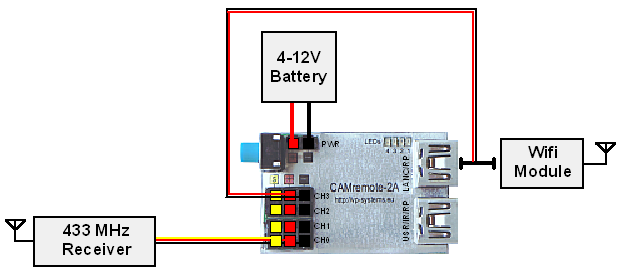
Connect Wifi-M1 Module to LANC/RP connector of the CAMremote and Wifi power cable to CH3. Connect 433 MHz receiver to CH0. Connection diagram:
BlackMagic Pocket/Cinema Camera with RC Receiver
Camera: BlackMagic CamerasCable/Method: LANC
Control Mode: RC receiver (CH0=Record/AF/Shoot, CH1=MF, CH2=Av/AutoAv)
Connect camera to LANC/RP connector of the CAMremote. Connection diagram:

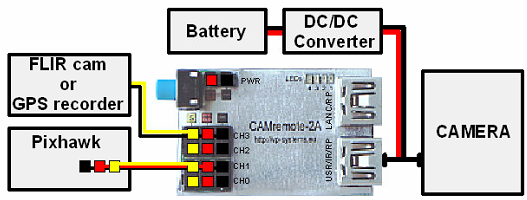
Parrot Sequoia Camera with Pixhawk and FLIR Camera/GPS Device
(See step-by-step instructions how to configure the CR using PC)Camera: Parrot Sequoia
Cable/Method: USB/PTP
Tv: 0"8 (used to define how long time shutter release button is pressed)
Focus: AF is not used/AF is in use (used to define how long time AF signal is applied if it is in use)
Control Mode: Parrot Sequoia (CH0=Shoot (low), CH1=PWM, CH2=Shoot (high),CH3=Pulse Out)
Connect Sequoia USB cable
to USB/IR/RP (PORT1)connector
of the CAMremote and another end to camera. Connection
through CH3 to FLIR IR camera or GPS device is optional. Connect 2-pin
battery terminal to battery. If there is cable without DC/DC Converter
then connect 3-pin power terminal to 5V power source. Connection
diagram:
Note:
Parrot Sequoia Camera will establish connection with CAMremote in 30-40
sec after warming up (LED on camera goes green when camera is ready to shoot)
Note: CH3 is used to trigger exact moment of actual camera shoot or command FLIR IR camera to take a shoot
Sony Camcorder with RC Receiver
Camera: Sony Camcorder (RMT-814)Cable/Method: LANC
Control Mode: RC receiver (CH0=Record/AF/Shoot, CH1=SmoothZoom, CH2=Alt)
Connect camera to LANC/RP connector of the CAMremote. Connection diagram:
Sony NEX-3N/ALPHA/ICLE-3000-6000/7*/etc with RC Receiver
Camera: SonyCable/Method: MULTI
Tv: 0"8 (used to define how long time shutter release button is pressed)
Focus: AF is not used/AF is in use (used to define how long time AF signal is applied if it is in use)
Control Mode: RC receiver (CH0=Record/AF/Shoot, CH1=SmoothZoom, CH2=Alt)
Connect camera to LANC/RP connector of the CAMremote. Note CH2 is not used (reserved for future use) and can be left connected. Connection diagram:
- Shutter release function is not available when PC is connected to CR.
Sony ICLE-5000/5100/5200/6000/7*/etc with RC Receiver
Camera: SonyCable/Method: MULTI+PTP
Tv: 0"8 (used to define how long time shutter release button is pressed)
Focus: AF is not used/AF is in use (used to define how long time AF signal is applied if it is in use)
Control Mode: RC receiver (CH0=Record/AF/Shoot, CH1=Av, CH2=Tv, CH3=ISO)
Connect MULTI plug to camera. Connect double-wire plug to LANC/RP connector of the CR and single-wire plug to USB/IR/RP port of the CR. Connection diagram:
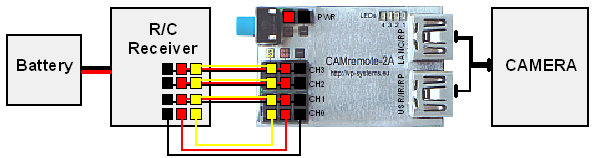
- Shutter release function is not available when PC is connected to CR.
Sony ICLE-5000/5100/5200/6000/7R*/etc with Dedicated Radio Control, ArduCopter/Pixhawk and RC receiver
Camera: SonyCable/Method: MULTI+PTP
Tv: 0"8 (used to define how long time shutter release button is pressed)
Focus: AF is not used/AF is in use (used to define how long time AF signal is applied if it is in use)
Control Mode: Manual: 8/12B-Radio+FC+RC (CH0=RX, CH1=Zoom, CH2=Rec/Shoot)
Connect double-wire plug of MULTI-USB cable to LANC/RP connector of the CR and single-wire plug to USB/IR/RP port of the CR. Connect MULTI plug to camera. Connection diagram:

- Camera is switching between USB remote mode and MULTI mode depending of requested control command (camera is showing switching between modes on LCD)
- Shutter release function is not available when CR is connected to PC.
Sony Camcorder (MULTI Connector + A/V) with RC Receiver
Camera: Sony CameraControl Mode: RC receiver (CH0=Record/AF/Shoot, CH1=SmoothZoom, CH2=Alt)
Depends of camera choose one of the option:
Cable/Method: MULTI+AV
Tv: 0"8 (used to define how long time shutter release button is pressed)
Focus: AF is not used/AF is in use (used to define how long time AF signal is applied if it is in use)
or
Cable/Method: LANC+AV
Connect camera to LANC/RP connector of the CAMremote.
Sony ICLE-5000/5100/5200/6000/7*/etc with ArduCopter/Pixhawk and RC receiver
Camera: SonyCable/Method: MULTI+PTP
Tv: 0"8 (used to define how long time shutter release button is pressed)
Focus: AF is not used/AF is in use (used to define how long time AF signal is applied if it is in use)
Control Mode: Arducopter: (CH0/2=Record/Shoot, CH1=Zoom/Record/CamOn+Off)
Connect MULTI plug to camera. Connect double-wire plug to LANC/RP connector of the CR and single-wire plug to USB/IR/RP port of the CR.
ArduCopter/Pixhawk is controlling CH0 of the CR to do shooting during autopilot mode. CH1 and CH2 can be used to control camera features manually (optional).
Connection diagram:
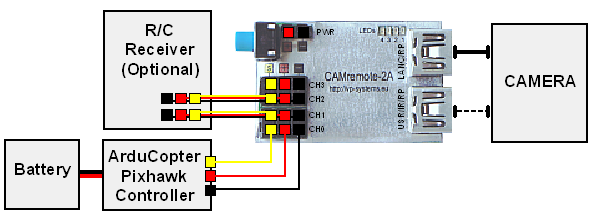
- Shutter release function is not available when PC is connected to CR.
Panasonic GH4/GH5/GH5s/G9 Camera with 4-pin Remote Port using RC Receiver
(See step-by-step instructions how to configure the CR using PC)Camera: Panasonic GH4
Cable/Method: RP/PANA-Z1
Tv: 0"8 (used to define how long time shutter release button is pressed)
Focus: AF is not used/AF is in use (used to define how long time AF signal is applied if it is in use)
Control Mode: RC receiver (CH0=Record/AF/Shoot, CH1=SmoothZoom, CH2=Alt)
Connect camera to LANC/RP connector of the CAMremote. Connection diagram:
Panasonic GH4/GH5/GH5s/G9 Camera with 4-pin Remote Port and USB using RC Receiver
(See step-by-step instructions how to configure the CR using PC)Camera: Panasonic GH4
Cable/Method: USB/PTP+RP
Tv: 0"8 (used to define how long time shutter release button is pressed)
Focus: AF is not used/AF is in use (used to define how long time AF signal is applied if it is in use)
Control Mode: RC receiver (CH0=Record/AF/Shoot, CH1=Av, CH2=Tv, CH3=ISO)
Connect Remote Port cable
to LANC/RP
connector of the CAMremote and another end to camera. Connect 8-pin USB cable
to USB/IR/RP
port of the CR and another end to camera. Connection diagram:
Note:
Change USB mode to Remote
Control (PTP) or PC Tether
in camera's menu (update firmware of the camera if not available). Set
camera dial to any of STILL modes. Movie
Recording and Still Shooting is possible only in one of the STILL modes
so that there is no need to change camera's dial between STILL and
MOVIE modes. If camera is in MOVIE mode then no way to trigger shooting
of still's photos - it always triggers movie recording.
Note: Be sure 'ISO Increments' in camera menu is set to '1/3 EV' otherwise ISO control doesn't work.
GoPro Hero3 with RC Receiver
Camera: Gopro Hero3Cable/Method: BACK-CON1
Control Mode: Manual: RC receiver (CH0=Record/AF/Shoot)
Connect camera to USB/IR/RP connector of the CAMremote. Connection diagram:

Note the Hero3 doesn't support shutter release command by default. There is a workaround:
Movie recording:
1) Set CR as "Camera: GoPro Hero3" and "Control Mode: Manual: RC receiver (CH0=Recording/Shoot)".
2) Power on CR and connect cable to USB/IR/RP port and to GoPro's backpack connector
3) Turn on GoPro
4) GoPro automatically goes into 3D mode (texts on camera's LCD flips) and CR becomes capable to toggle Movie recording start/stop if you apply 30% and 50% throttle to CH0
Photo shooting:
1) Set CR as "Camera: GoPro Hero3" and "Control Mode: Manual: RC receiver (CH0=Record/AF/Shoot)".
2) Power on CR and connect cable to USB/IR/RP port and to GoPro's backpack connector
3) Turn on GoPro
4) GoPro automatically goes into 3D mode (MOVIE mode, texts on camera's LCD flips)
5) Select PHOTO mode from setup: Settings->Setup->Mode: PHOTO ->Exit->Exit
6) Now you can trigger the shutter release if you apply 80% and 50% throttle to CH0 (100% throttle is continuous shooting).
7) Toggle Movie recording start/stop if you apply 30% and 50% throttle to CH0. GoPro does power off/on sequence and goes into MOVIE mode (no way to shoot photos anymore until you repeat p.5)
GoPro Hero3/3+ with RC Receiver
Camera: GoPro Heros (1-Button Mode)Cable/Method: BACK-CON1
Control Mode: Manual: RC receiver (CH0=Record/AF/Shoot)
Connect camera to USB/IR/RP connector of the CAMremote. Instructions how to prepare camera for remote control are shown above.
Cameras with 3-pin Remote Port using RC Receiver
Camera: Any (Remote Port Compatible)Cable/Method: RP/E3A
Tv: 0"8 (used to define how long time shutter release button is pressed)
Focus: AF is not used/AF is in use (used to define how long time AF signal is applied if it is in use)
Control Mode: Manual: RC receiver (CH0=Record/AF/Shoot)
(See step-by-step instructions how to configure the CR using PC)
Connect camera to USB/IR/RP connector of the CAMremote. Connection diagram:
Optionally camera can be
connected to another USB connector using configuration below:
Cable/Method: RP/E3B
(See step-by-step
instructions how to configure the CR using PC)
Connect camera to LANC/RP
connector of the CAMremote. Connection diagram:
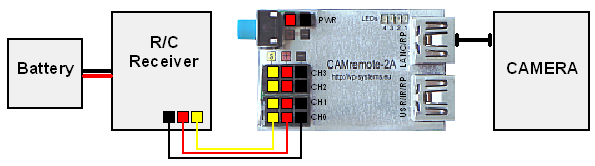
Sony Cameras with IR Sensor using RC Receiver
Camera: Sony/Minolta/KonicaCable/Method: IR
Control Mode: Manual: RC receiver (CH0=Record/AF/Shoot)
Connect camera to USB/IR/RP connector of the CAMremote. Turn on IR reception mode in camera!
Connection diagram:
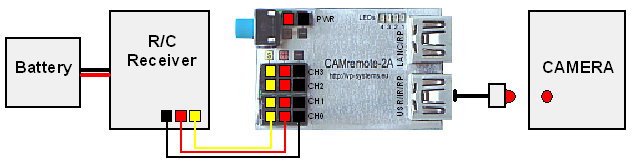
Canon DSLR cameras with USB using 4/8/12-Button Receiver
Camera: Canon EOS-SeriesCable/Method: USB/PTP
Control Mode: Manual: 4/8/12-Button Radio (CH0=Radio, CH1=Tilt, CH2=Pan, CH3=Z/R)
(See step-by-step instructions how to configure the CR using PC)
Connect camera to USB/IR/RP connector of the CAMremote. Connection diagram:

* Zoom/Roll servo is
optional (same to Pan and Tilt servos),
functionality is configurable by Configuration software. Another option
is power switch control for video downlink equipment.
Note binding is needed before usage of
radio system.
Cameras with 3-pin Remote Port using Wireless PIR Sensor(s)
Camera: Any (Remote Port Compatible)Cable/Method: RP/E3B
Tv: 0"8 (used to define how long time shutter release button is pressed)
Focus: AF is not used/AF is in use (used to define how long time AF signal is applied if it is in use)
Control Mode: Wireless PIR with Light Sensor (CH0=Radio, CH1=Light Sensor, CH2/3=Lamp)
Connect camera to LANC/RP
connector of the CAMremote. Connection diagram:

Sony Camera with S.BUS Cmpatible RC Receiver
Camera: Sony CameraCable/Method: MULTI
Tv: 0"8 (used to define how long time shutter release button is pressed)
Focus: AF is not used/AF is in use (used to define how long time AF signal is applied if it is in use)
Control Mode: S.BUS on CH0: (#1=Record/AF/Shoot, #2=Zoom, #3=Av, #4=Tv, #5=ISO)
Connect camera to LANC/RP connector of the CAMremote. Connection diagram:
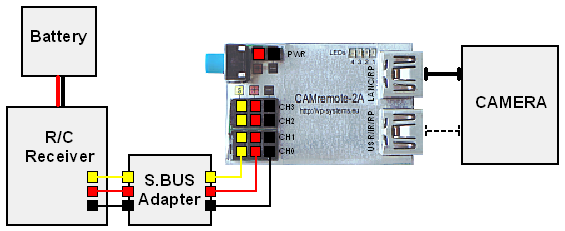
Parachute Rescue Kit control by CAMremote and 433 MHz Radio
Camera: Any (Uses Servo control only)Cable/Method: Servo: CH2
Tv: 1" (used to define how long time servo lever is at launch poistion)
Focus: -
Control Mode: Parachute Kit: (CH0=433MHz Radio, CH1=RX, CH2=Servo)
'Finger' Servo Idle: 0°
'Finger' Servo Full Push: -80°
Download settings: set_parachute.dat
Connection:
Connect 433 MHz radio receiver to CH0 and servo of the Parachute Kit to CH2. Apply independent external power to PWR terminal (Option1 - most prefeable, use for example ultra-light 9V Li-Ion rechargeable battery 6F22) or connect spare channel of your hobby radio receiver to CH1 of the CR (Option2).
Instructions during installation:
- Connect CR to PC and run configuration software
- Configure the CR according to setup above and save settings to CR by pressing Save Settings to CAMremote button
- Connect radio and power to CR according to connection instructions above
- Press Idle button '|>' in 'Finger' Servo frame. Attach lever to servo but don't screw it yet
- Press Full Press button '|>' in 'Finger' Servo frame. Be sure lever didn't hit frame of the Kit. Adjust lever so that there is small space between. Screw it to servo
- Press Idle button '|>' in 'Finger' Servo frame so that lever goes back it's idle position.
- Turn 1-button radio on. Press on grey button on transmitter. Servo have to move to launch position and back to idle position.
Connection diagram:

Support
CAMremote is continually improving as a result of the feedback and suggestions of users. Ideas for improvements and requests for new feature are welcome and greatly appreciated. Bug reports will be investigated and corrected as soon as possible. To report a problem or request a new feature, please contact us by email at websupport(ät)vp-systems.eu or through our web page http://vp-systems.eu -> Contact. Visit CAMremote’s support page to get updated software and documentation.
Troubleshooting
If an error occurs, please consider the following instructions. If you are unable to solve the problem, please contact us by e-mail or through our web page. Please attach screencopy of your setup and detailed description which help us to replicate same condition. Please don’t try to repair the device yourself or you will void the warranty.
|
Problem |
Cause |
Solution |
|
All LED's are on after power on |
CR didn't start correctly |
Unplug CR from power supply or from USB port of the PC and plug again |
|
All LED's blink 8 times after power on |
Firmware/Settings of the CR are corrupted |
Update the firmware using configuration software: 1. Save all settings to file: File->Save all Sets to file
and give file name |
|
All LED's are off after power on |
No power supply on CH0, CH1, CH2 CH3 or Battery Terminal. |
Check wires of power supply and polarity of connector which is attached to CH0-CH3 or Battery Terminal |
| Radio control doesn't work correctly (hobby radio equipment) | Reason #1: Transmitter or receiver are not
powered on |
Figure out what kind of PWM signals your radio is generating by using built in PWM Signal Tester mode. If necessary, re-configure your radio according to Control mode you are planning to use. |
| Reason #2: Receiver is not connected to CR or connection cable is defective | ||
| Reason #3: CR is not configured correctly to accept receiver's signals | ||
| Reason #4: Radio is generating wrong signals which doesn't match to selected configuration of the CR | ||
| PC is not recognizing the CR (USB I/O Error message is displayed continuously in configuration software) | Reason #1: CR is powered from CH0-CH3 or through PWR when connected to PC | Power off any source which is connected to CH0-CH3 or PWR terminal and re-insert CR to USB port of the PC again and then connect devices to channels or PWR terminal |
| Reason #2: USB cable is connected to LANC/RP port on CR | Unplug USB cable from LANC/RP port of the CR and plug it to USB/IR/RP port of the CR | |
| Reason #3: USB cable is defective or USB port of the PC is not responding | Try to use different USB cable or try to use another USB port on your PC | |
| Reason #4: Firmware is corrupted | Reload firmware in BOOTLOADER mode (all Settings will
be lost): 1. Hold down
blue onboard button and at the same time connect CR to USB port of the
PC. Release the button. Wait until all LEDs blinks 8 times and finally
red LED#1 stays on |
Specification
Board size: 31 x 21 mm (1.22” x 0.83”)
Board weight: 3g (0.106 oz)
Board weight with USB and three servo cables: 18 g (0.635 oz)
Supply voltage on Battery Terminal (PWR): 3.7-12 V (Note 12V is absolute, use external regulator to meet specification)
Supply voltage on power pins of channels CH0-CH3: 3-16 V
Power consumption without servos: 1-15 mA
Channel connectors: 3-pin JR/Futaba style
Maximum input voltage on Signal pin (S) of CH0-CH2: 10 V (survival)
Maximum input voltage on Signal pin (S) of CH3: 5 V (survival)
Warranty
1 year.
(c) 2018 VP-Systems